
Moderation
Moderation is where you deal with reports from members about other members in the Training Circle, the social part of the members’ app. You can also handle appeals and record a member’s age check.
Who can use it: staff with the user admin role, and admins. It may not be included in every plan.
Open it from the menu: Community → Moderation. The page is titled Training Circle Moderation & Appeals and has four tabs. Click Refresh to reload.
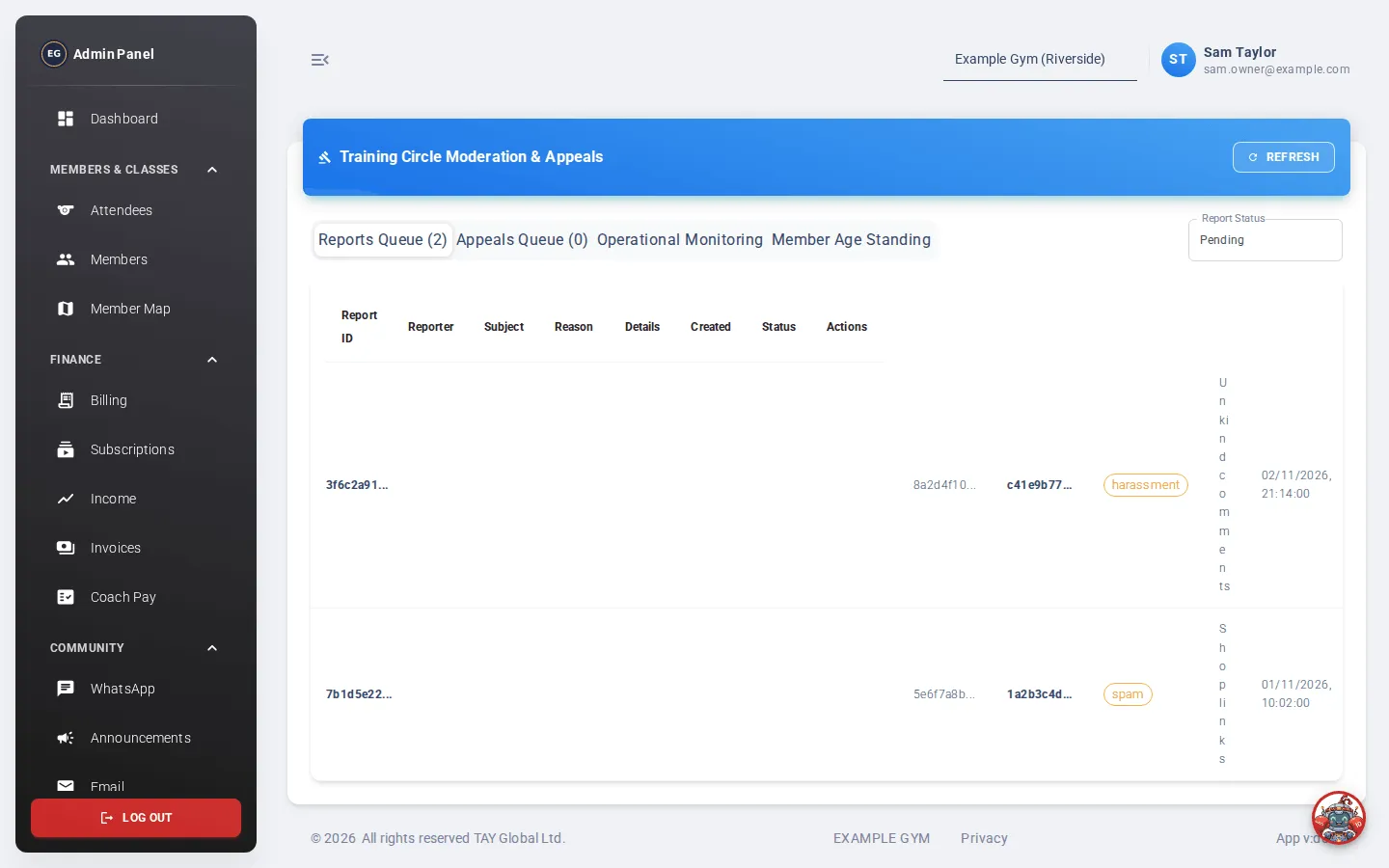
Reports Queue
Section titled “Reports Queue”Use Report Status to show Pending (the default), Resolved, Dismissed or All reports.
Each report shows who reported, who was reported (the “Subject”), the reason, any details, and when. Reasons include harassment, terms of service violation, inappropriate content, impersonation, spam or scam, and safety concerns.
Handle a report
Section titled “Handle a report”- Dismiss: no action needed. The report is closed straight away.
- Suspend Member:
- Click Suspend Member.
- Check the Suspension Decision / Reason. It starts with the reason given in the report.
- Add Moderator Notes: your reasons and evidence. Only staff see these.
- Click Confirm Suspension.
Suspending a member takes effect straight away. Their pending friend requests are cancelled and their friendships in the Training Circle are put on hold. The report is marked resolved.
Handled reports show the decision and your notes.
Appeals Queue
Section titled “Appeals Queue”A suspended member can appeal. Use Appeal Status to show Pending, Resolved or All.
- Reinstate: lift the suspension. This happens straight away.
- Reject: keep the member suspended. Enter your reason in Rejection Decision / Rationale, then click Reject Appeal.
Operational Monitoring
Section titled “Operational Monitoring”A read-only summary of how moderation is going: the number of pending reports, how long the oldest has been waiting, and a set of safety checks with a pass or warning status for each.
Member Age Standing
Section titled “Member Age Standing”The Training Circle is for adults. Use this tab to look up or record a member’s age check.
- Enter the member’s ID in Member UUID and click Lookup Standing.
- Check their standing, age status and how they were verified.
- To change it, click Update Age Assurance.
- Choose the Age Assurance Status: Verified Adult (18+), Ineligible Minor (<18), Pending Review or Revoked.
- Choose the Verification Method: In-Person Staff Check, Operator Reviewed, Government ID Document or Payment Card On File.
- Add Staff Notes explaining what you checked.
- Click Save Standing.