
Gym Settings
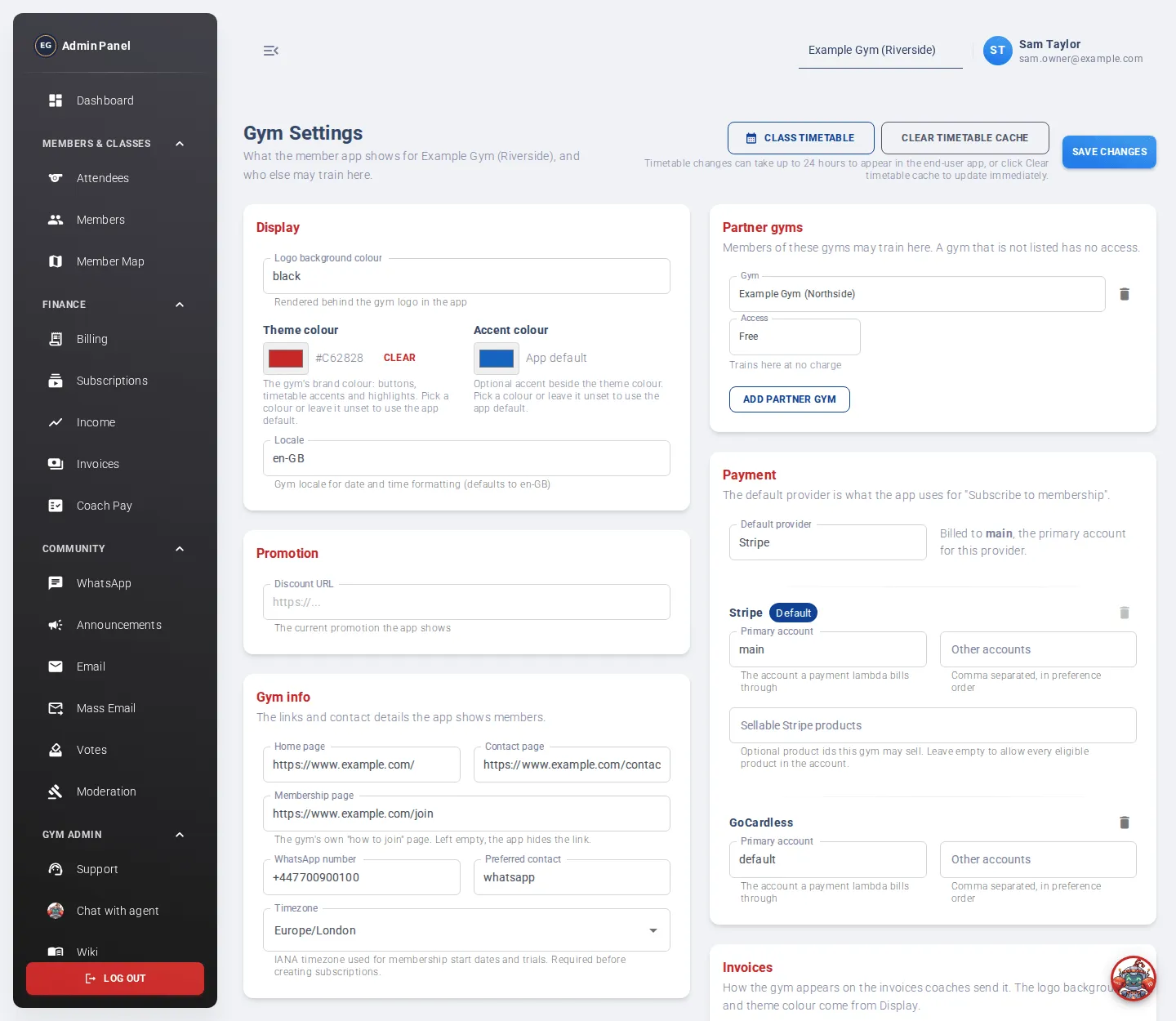
Gym Settings controls what the members’ app shows for your gym: colours, contact links, timezone, payment options and more. It also holds your invoice details and coach rates.
Who can use it:
- View settings: staff with a gym settings role.
- Change settings: staff with the gym settings (read and write) role, and admins. Everyone else sees the fields greyed out, with the note “Read only”.
Open it from the menu: Gym Admin → Gym Settings.
Saving
Section titled “Saving”Change the fields you want in any card, then click Save changes at the top right. This saves every card at once. You’ll see “Gym settings saved”.
If something is wrong, a message tells you which card to check, for example “Check the coach rates”.
Classes and the timetable
Section titled “Classes and the timetable”You don’t set up classes in the admin app. Click Class timetable at the top of this page to open Kakuto Calendar, where your classes are set up. See Set up a class.
Timetable changes can take up to 24 hours to appear in the members’ app. Click Clear timetable cache to show them straight away.
Display
Section titled “Display”- Logo background colour: the colour behind your logo in the app.
- Theme colour: your brand colour, used for buttons, timetable accents and highlights. It also colours the admin app. Click Clear to go back to the app default.
- Accent colour: an optional second colour.
- Locale: how dates and times are written, for example en-GB.
Promotion
Section titled “Promotion”- Discount URL: a link to your current promotion, shown in the app.
Gym info
Section titled “Gym info”The links and contact details the app shows members:
- Home page, Contact page and Membership page (your own “how to join” page; leave it empty to hide the link).
- WhatsApp number, for example +447700900000.
- Preferred contact, for example whatsapp.
- Timezone: used for membership start dates and trials. You must set this before anyone can create subscriptions.
Partner gyms
Section titled “Partner gyms”Members of the gyms you list here may train at your gym. A gym that isn’t listed has no access.
- Click Add partner gym.
- Choose the Gym.
- Choose the Access: Free, or Paid with a Price per visit and Currency.
- Click Save changes.
Click the bin icon on a row to remove a partner. Partner gyms also appear in the gym selector at the top of the admin app.
Payment
Section titled “Payment”Choose how members pay when they tap “Subscribe to membership” in the app.
- Default provider: Stripe (card) or GoCardless (Direct Debit).
- For each provider, the Primary account your gym bills through, and any Other accounts in order of preference.
- For Stripe, Sellable Stripe products: the products members may buy. Leave it empty to allow every eligible product.
Use Add Stripe or Add GoCardless to add a provider, and the bin icon to stop billing through one. You can’t remove the default provider. Kakuto usually sets this card up with you.
Invoices
Section titled “Invoices”How your gym appears on invoices, both the invoices coaches send you and the invoices you send members:
- Name on invoices
- Billed to
- Billing address
- Finance emails: copied on every invoice a coach sends. Separate several with commas.
- Reply-to email
The logo background and theme colour come from Display.
Coach rates
Section titled “Coach rates”What a coach is paid for each class they invoice in Billing. Coaches can’t invoice classes until you add rates.
- Under Gym rates, click Add rate.
- Choose the Role: Teaching, Assistant or Reception.
- Enter the Class length in minutes, or leave it blank for any length.
- Enter the Rate in pounds, for example 30 or 32.50.
- Click Save changes.
Roles add up: a coach who taught and did reception is paid both.
To pay one coach differently, add a Coach-specific rate with their sign-in email. It replaces the gym rate for that role and class length.
Training Journey
Section titled “Training Journey”This card (titled Training Forge) turns on XP, weekly streaks and badges for your members in the members’ app.
- Enable Training Journey: switch it on to start.
- Training days per week: the weekly goal (1 to 7). Members can take rest days; the goal counts different days trained.
- XP per class, Weekly goal bonus XP, New discipline bonus XP, Quiet class bonus XP (with a Quiet class attendance limit), New company bonus XP.
- Rewarded classes per day: how many classes a day earn XP (1 to 3).
XP and rewards update once a day, after the gym’s day ends, using real attendance. Meeting the weekly goal earns gems, and a shield can protect one missed week. XP, gems and streaks reset each quarter. Badges are kept for good.
Member self-service
Section titled “Member self-service”Let members cancel or freeze their own membership from their profile in the app.
- Members can cancel their membership: card memberships end at the end of the period already paid for. Direct Debit memberships are cancelled straight away.
- Members can freeze their membership: the freeze starts at the member’s next billing date and restarts automatically. Members can end it early themselves.
- Suspension membership: the Stripe product to bill while a member is frozen, for example a £10 a month suspended membership. Leave it blank to freeze without charging.
- Longest freeze (months): 1 to 12. The default is 3.
When a switch is off, members don’t see that button in the app.