
Subscription Products
Subscription Products is your price list for Direct Debit (GoCardless) memberships: what each membership is called, how much it costs and how often it is billed.
Card (Stripe) products are not managed here. You set those up in your Stripe dashboard.
Who can use it: anyone who can open Subscriptions can see the list. Only staff with the membership (read and write) role, and admins, can add or change products.
How to open it
Section titled “How to open it”It isn’t in the menu.
- Open Finance → Subscriptions.
- Set Payment provider to GoCardless.
- Click Subscription products at the top of the page.
Click the back arrow next to the page title to return to Subscriptions.
The list
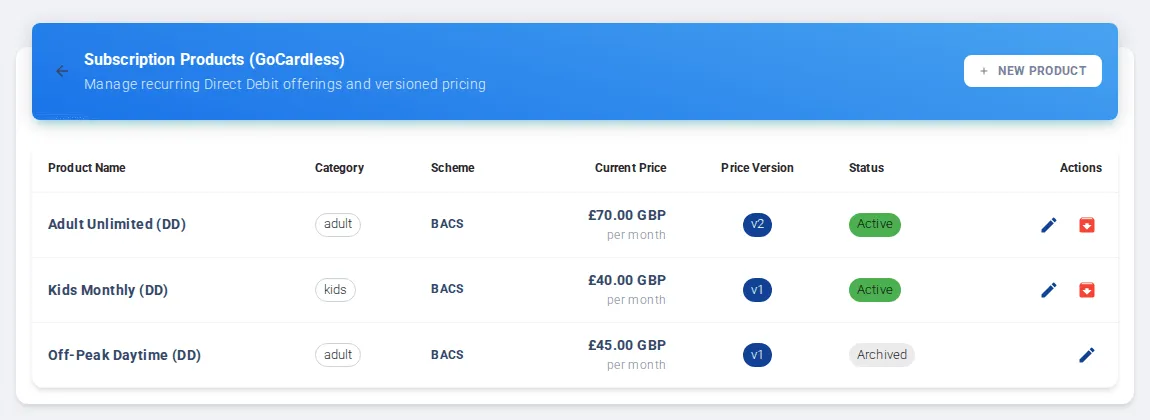
Section titled “The list”Each product shows its Product Name, Category, Scheme (for example Bacs), Current Price, Price Version and whether it is Active or Archived.
Add a product
Section titled “Add a product”- Click New product.
- Enter a Product Name, for example “Adult Full Membership”.
- Enter a Category, for example Adult, Kids or General. Categories group plans when you create a subscription.
- Choose the Scheme. For UK bank accounts this is Bacs (UK). Other options include SEPA (Eurozone), ACH (United States), BECS (Australia and New Zealand), PAD (Canada) and Autogiro (Sweden).
- Enter the Price and choose the Currency.
- Choose the Interval (Monthly, Weekly or Yearly) and the Interval Count. For example, Monthly with a count of 3 bills every 3 months.
- Leave Active (offered for new memberships) on.
- Click Save Product.
Change a price
Section titled “Change a price”Click the pencil icon on the product, change the price or interval, and click Save Product.
Stop selling a product
Section titled “Stop selling a product”Click the red Archive icon on the product. It is archived straight away and is no longer offered for new memberships. Existing memberships carry on.
To offer it again, edit the product and turn Active back on.