
Class timetable
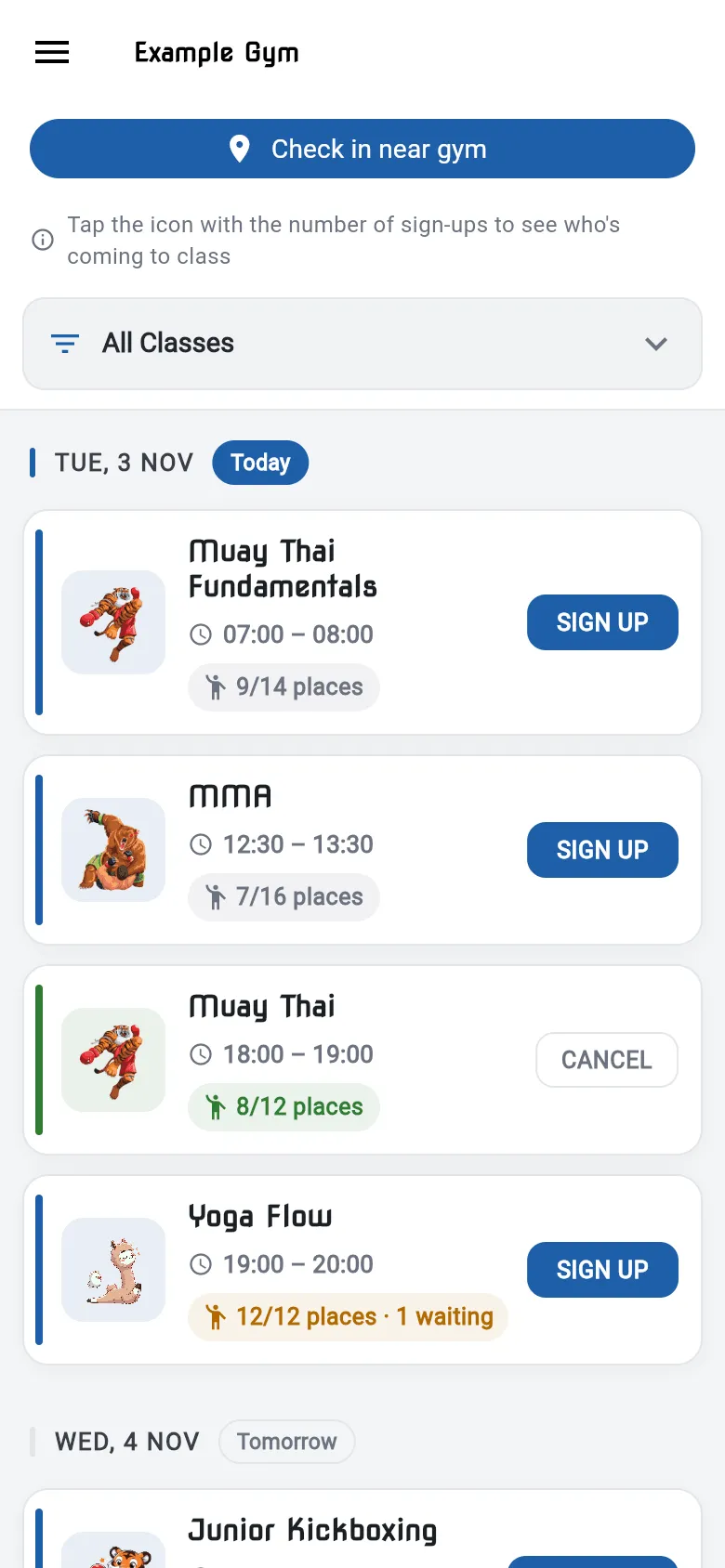
The Class Timetable is the app’s main screen. It lists your gym’s upcoming classes, day by day, starting with Today and Tomorrow.
Open it from the menu: Class Timetable.
What you see
Section titled “What you see”- Announcements from your gym appear at the top, above the first day.
- Check in near gym appears at the top if your gym uses location check-in. See Checking in.
- A filter lets you show All Classes or just one type of class, such as BJJ or Muay Thai.
- Each class shows its name, time and an icon for the type of class.
- Places: if your gym limits places, a class shows how many are taken, for example 8/12 places. When a class is full, the places turn orange (for example 12/12 places) and show how many people are waiting, if any, for example 12/12 places · 1 waiting.
- Your own status on the class: a SIGN UP button, a CANCEL button if you’re booked, your place on the waiting list, or CHECKED IN.
Pull the list down to refresh it.
Book a class
Section titled “Book a class”Tap SIGN UP on the class. When it’s done, the button changes to CANCEL.
If the class is full, the app offers you a place on the waiting list instead. See Waiting lists.
Book for your children or family
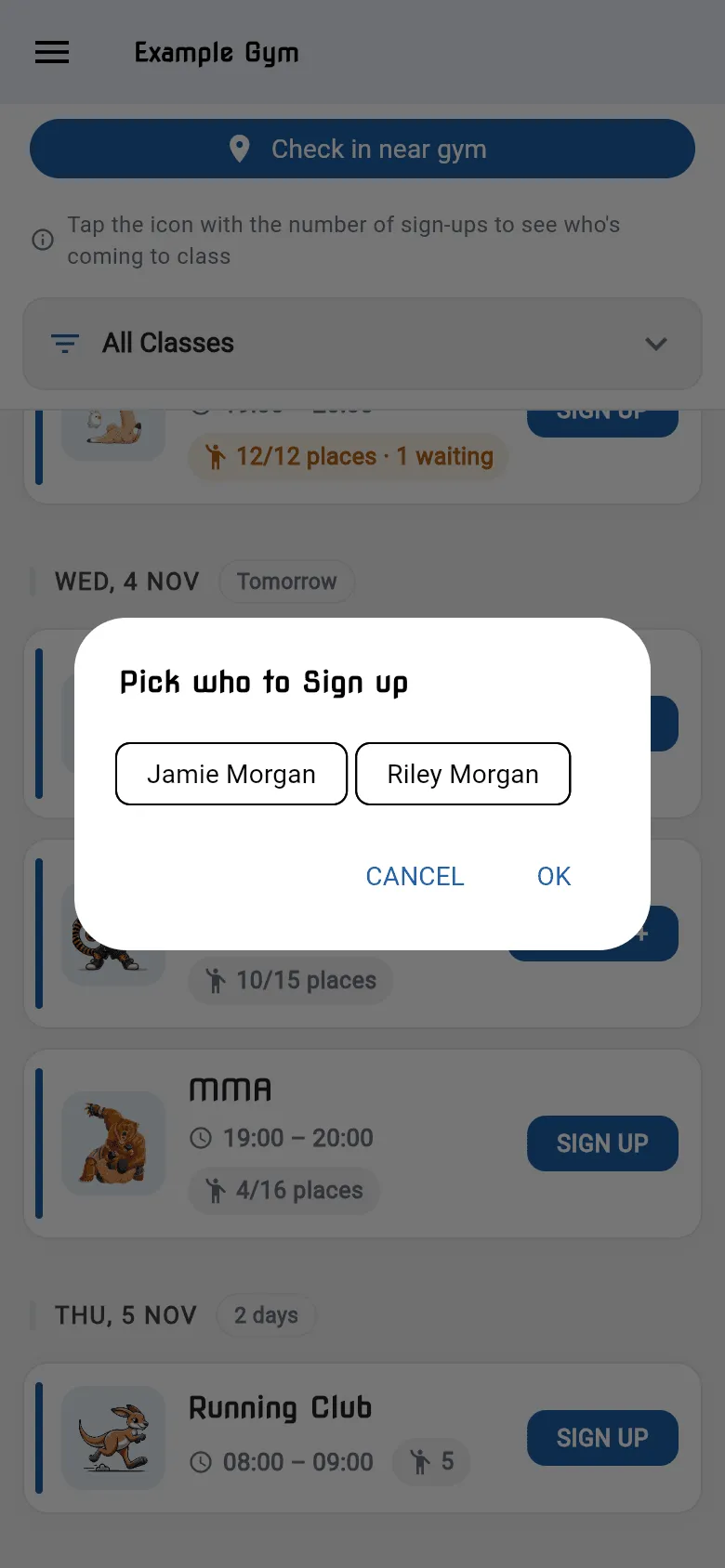
Section titled “Book for your children or family”If you’ve added family members, children’s classes (such as junior or cadet classes) show SIGN UP + instead of SIGN UP.
- Tap SIGN UP +.
- Under Pick who to Sign up, tap each family member who’s coming.
- Tap OK.
Cancel a booking
Section titled “Cancel a booking”Tap CANCEL on the class. Your place is freed up. If someone is on the waiting list, the first person on it gets your place.
See who’s coming
Section titled “See who’s coming”Tap the icon with the number of sign-ups on a class. Class Attendance lists everyone SIGNED UP, and the WAITING LIST if there is one. Members are shown by their nickname, in the colours they chose.
Check in
Section titled “Check in”When you arrive, check in with the gym’s QR code, or with Check in near gym if your gym uses it. Once you’re checked in, the class shows CHECKED IN. See Checking in.