
Subscriptions
Subscriptions lists every member subscription, whether they pay by card (Stripe) or by Direct Debit (GoCardless). You can see who is paying what, spot failed payments, and fix most problems without leaving the page.
Who can use it:
- View the page: finance staff, staff with a membership role, and admins.
- Change subscriptions (create, pause, cancel, refund, retry, link a member): staff with the membership (read and write) role, and admins.
- Issue invoices: finance staff, membership (read and write), and admins.
It may not be included in every plan. If you don’t see it, ask Kakuto.
Open it from the menu: Finance → Subscriptions. From a member’s page in Members you can also click View subscription.
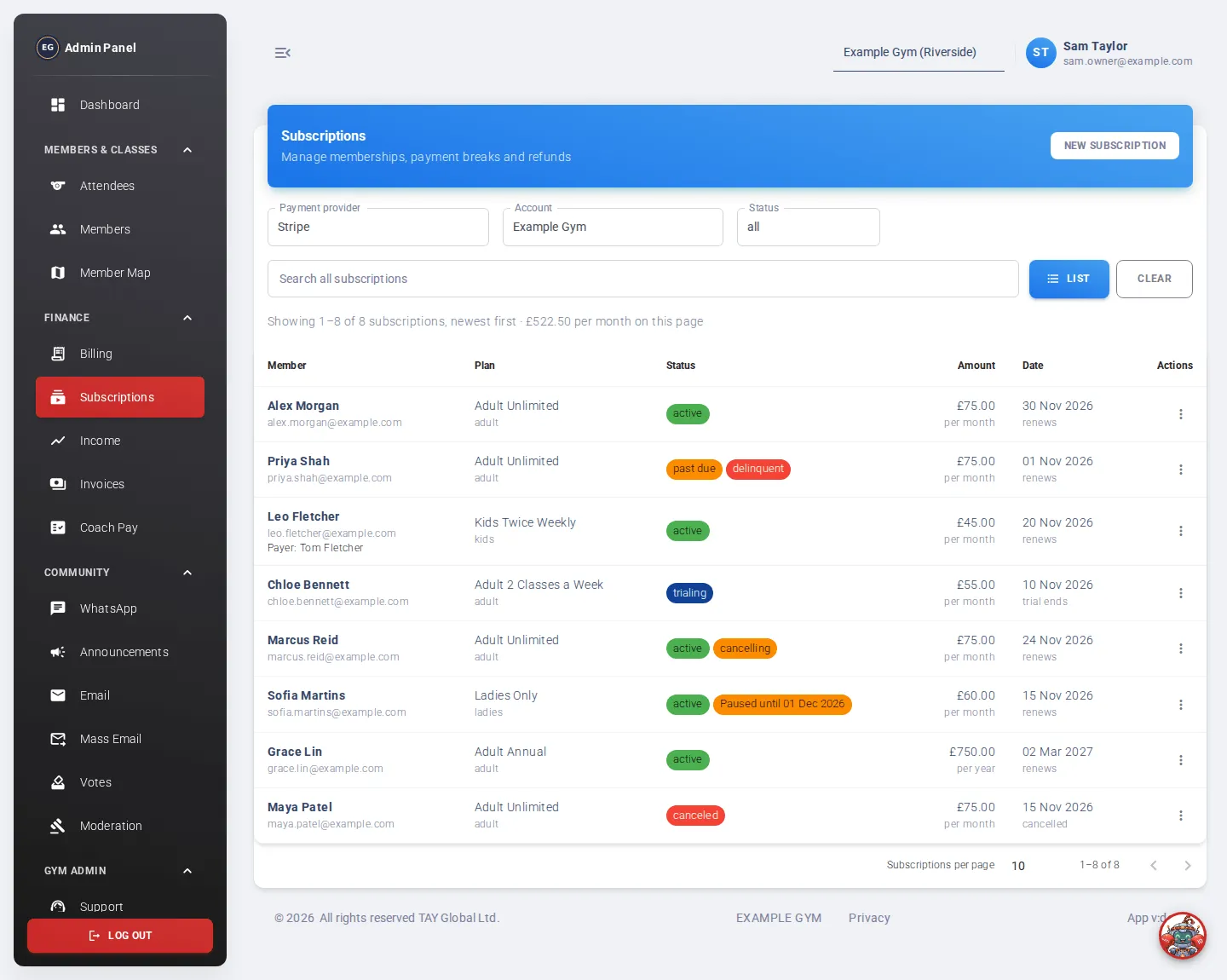
Find a subscription
Section titled “Find a subscription”The list stays empty until you search. This keeps the page fast.
- Choose the Payment provider: Stripe (card) or GoCardless (Direct Debit). Only the providers your gym uses are shown.
- If your gym has more than one Stripe account, choose the Account.
- Choose a Status. The default is active. Choose all to include cancelled and paused subscriptions.
- Type a member’s name, email or subscription ID in the search box and click Search. Or leave the box empty and click List to see the newest subscriptions first.
Above the table, a summary line shows how many subscriptions matched and the total per month for the ones on this page.
The table
Section titled “The table”| Column | What it shows |
|---|---|
| Member | Name and email. “Payer: …” when someone else pays, such as a parent. “App member not linked” when the subscription isn’t linked to anyone in the members’ app yet. |
| Plan | The plan name and its category. |
| Status | A coloured chip, plus extra chips such as cancelling, Paused until …, provisional access or a red delinquent. |
| Amount | The price, for example “per month”. |
| Date | The next renewal, the first collection, the end of a trial, or when it was cancelled. |
| Actions | The ⋮ menu for that subscription. |
Common statuses
Section titled “Common statuses”- active: paying normally.
- trialing: in a free trial.
- past due: a card renewal failed and is being retried.
- paused / suspended: collection is on hold.
- canceled: ended.
- awaiting payment setup / awaiting mandate: created, but the member still needs to add their card or set up their Direct Debit.
- scheduled: starts on a future date.
- payment failed / failed: the first payment didn’t go through.
The actions menu (⋮)
Section titled “The actions menu (⋮)”What you see depends on the provider, the subscription’s status and your role.
| Action | Card (Stripe) | Direct Debit (GoCardless) |
|---|---|---|
| Details: plan, payment schedule and bank mandate | ✓ | |
| Payments: every payment for this member | ✓ | ✓ |
| Issue invoice: email a PDF invoice for a payment | ✓ | ✓ |
| Pause / Edit pause | ✓ | |
| Suspend / Edit suspension | ✓ | |
| Reactivate: end a pause or suspension | ✓ | ✓ |
| Cancel | ✓ | ✓ |
| Update Payment Method: send the member a link to change card | ✓ | |
| Copy setup link: for a member who hasn’t finished setting up | ✓ | ✓ |
| Link app member | ✓ | ✓ |
| Retry creation: for a new subscription that got stuck | ✓ | ✓ |
| Go to Stripe: open it in your Stripe dashboard | ✓ |
Pause a card subscription
Section titled “Pause a card subscription”- Click ⋮ → Pause.
- Choose Resume collection on: a date from tomorrow onwards.
- Click Pause collection.
The same subscription carries on. No payments are taken during the pause, and collection restarts on the normal billing schedule from the date you chose. Unpaid invoices from before the pause may still be collected.
The row shows “Paused until …”. To change the date, use Edit pause.
Suspend a Direct Debit subscription
Section titled “Suspend a Direct Debit subscription”- Click ⋮ → Suspend.
- Choose Skip payments until. Every payment due before that date is skipped.
- Click Suspend.
The member keeps app access and isn’t charged for the suspension. Payments start again at the first payment on or after the date. A payment that has already gone to the bank will still be collected, and the message tells you if that is the case.
Reactivate
Section titled “Reactivate”Click ⋮ → Reactivate, then Reactivate subscription.
- Card: collection restarts straight away, on the existing billing schedule.
- Direct Debit: payments restart on the normal schedule. Skipped payments are not collected.
Cancel a subscription
Section titled “Cancel a subscription”- Click ⋮ → Cancel.
- Leave Cancel at the end of the paid period on to let the member keep access until the end of what they’ve paid for. Turn it off to stop access straight away.
- Click Cancel subscription.
The member gets a cancellation email. A subscription that ends at the end of the period shows a cancelling chip until then.
- Click ⋮ → Cancel.
- Read the warning, then click Cancel subscription.
Future collections stop. Payments that haven’t gone to the bank yet are cancelled too. Any already sent to the bank will still be collected. The member’s Direct Debit stays in place for their other memberships.
A subscription that was never completed (still waiting for set-up) shows Cancel request instead. Nothing was charged, so cancelling just stops it.
Payments, refunds and retries
Section titled “Payments, refunds and retries”Click ⋮ → Payments to see every payment for that member. See Refund or retry a payment for step-by-step help.
- Card payments: you can Retry a failed payment, and Refund all or part of a successful one.
- Direct Debit payments: you can see each payment’s status and when it was paid into your bank (the payout). Retries and refunds for Direct Debit are not available here. Do them in your GoCardless dashboard.
Direct Debit details
Section titled “Direct Debit details”Click ⋮ → Details on a GoCardless subscription. You’ll see:
- A summary, for example whether it is suspended or cancelled, and when collection resumes.
- Subscription: plan, status, start date, amount and next charge.
- Payment schedule: the last 6 and next 6 payments, month by month.
- Payments: totals collected and the number of failed payments.
- Direct Debit mandate: status, reference, the last digits of the bank account, and the payer.
Issue an invoice for a payment
Section titled “Issue an invoice for a payment”- Click ⋮ → Issue invoice, or Issue invoice in the Payments list.
- Choose the Payment. Only payments that were taken or are on their way can be invoiced.
- Check Send to. Leave it empty to use the payer’s email.
- Add a Note on the invoice if you like (up to 500 characters).
- Click Send invoice.
The member gets a PDF invoice branded with your gym’s invoice details, which you set in Gym Settings. Click View PDF to see it. To send it again, use Resend invoice. It keeps the same invoice number.
Help a member update their card
Section titled “Help a member update their card”- Click ⋮ → Update Payment Method.
- A secure link is created. Click the copy icon.
- Send the link to the member, for example by email or WhatsApp. They open it and enter their new card.
Direct Debit has no equivalent. For a new bank account, create a new subscription and choose Set up new Direct Debit.
Link a subscription to a member
Section titled “Link a subscription to a member”Sometimes a subscription is billed to a customer who isn’t linked to anyone in the members’ app yet. The row says “App member not linked”.
- Click ⋮ → Link app member.
- Search for the member who should get access in App member. Billing stays with the payer.
- Click Link member.
Create a new subscription
Section titled “Create a new subscription”Click New subscription at the top of the page, or Create subscription on a member’s page. (From a member’s page, it is always a card subscription.)
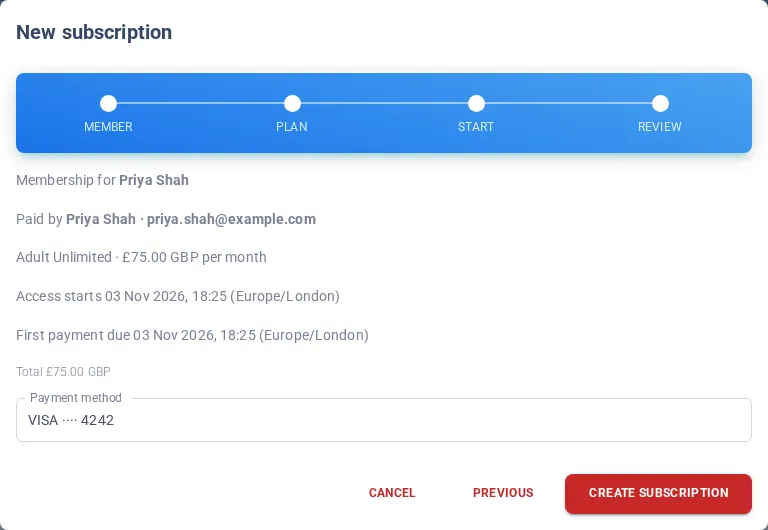
- Member
- Membership for: search for the member in the members’ app who gets access. You can leave this empty and link them later.
- Paid by: search for the paying customer, for example a parent. Or turn on New customer and enter a Billing name and Billing email.
- Plan: choose a Category, a Product and a Recurring price.
- Start: choose Start now or Start on a future date. To give a free trial, turn on Free trial and set the Trial days (1 to 90). The first charge is after the trial.
- Mandate (Direct Debit only): choose one of the customer’s existing Direct Debits, or Set up new Direct Debit.
- Review: check the member, payer, plan, dates and total. For a card subscription, choose the saved card to use.
- Click the button at the bottom. Depending on your choices it says Create subscription, Schedule subscription, Create request and setup link, Create Direct Debit subscription or Create subscription & setup link.
If the member needs to add a card or set up a Direct Debit, the last screen shows a setup link. Click Copy and send it to them. You can copy it again later from ⋮ → Copy setup link.
What you can’t do here
Section titled “What you can’t do here”- Change a subscription’s price, quantity, plan or payment day. For card subscriptions, use Go to Stripe and change it in your Stripe dashboard. The AI assistant may also be able to help.
- Refund or retry Direct Debit payments.
Direct Debit products
Section titled “Direct Debit products”The Subscription products button (shown when the provider is GoCardless) opens your list of Direct Debit memberships. See Subscription Products.