
Wiki
The Wiki is your gym’s own handbook for staff: opening and closing checklists, emergency procedures, class plans, payment links and anything else the team needs to know. You choose who can see and edit each page.
Who can use it:
- Read: coaches, finance staff, and anyone with a wiki role.
- Create and edit pages: wiki editors.
- Change who can see a page, delete pages and restore them: wiki managers.
- Owners (admins) can see and edit every page.
It may not be included in every plan.
Open it from the menu: Gym Admin → Wiki.
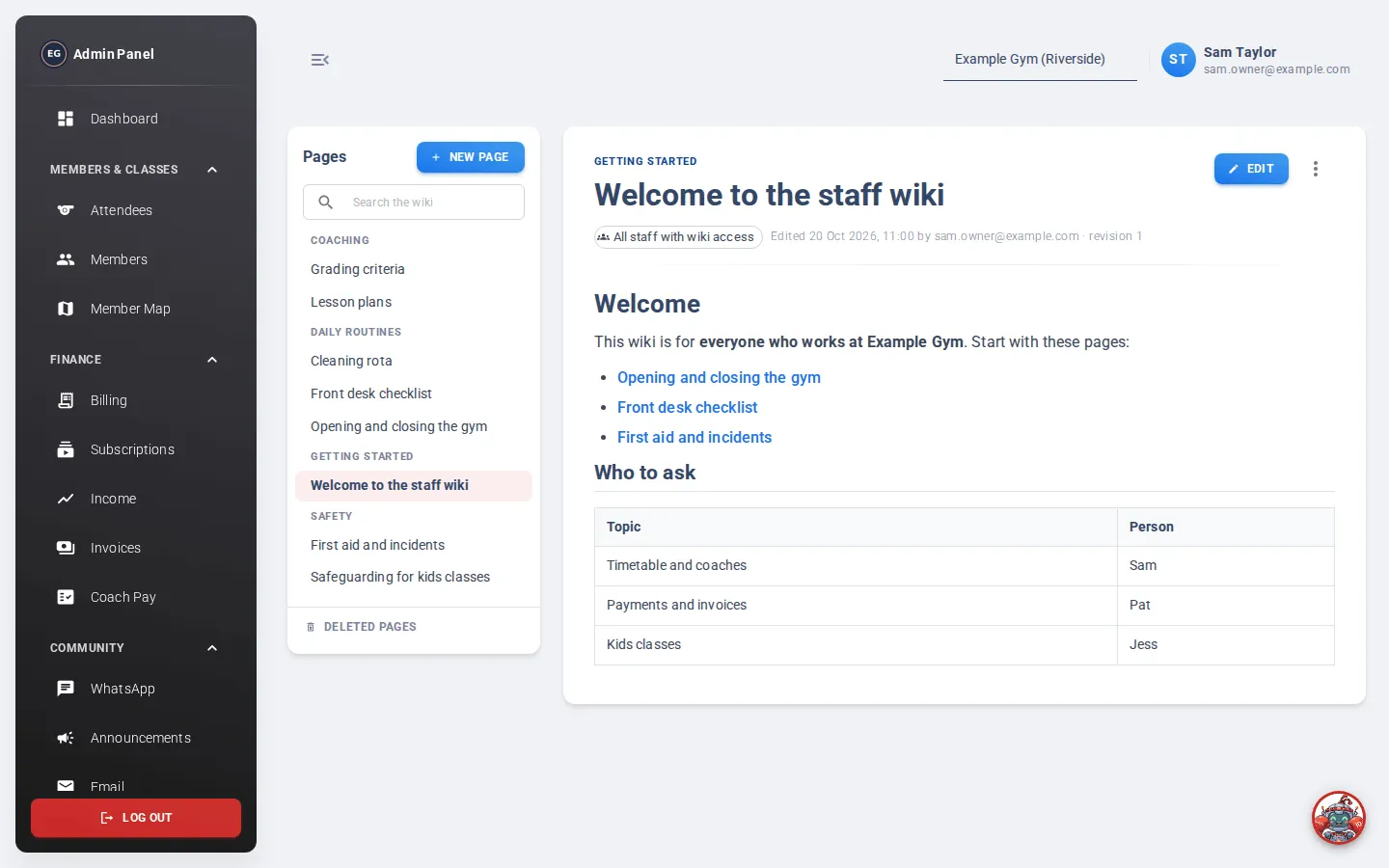
Finding a page
Section titled “Finding a page”- The home page, Gym wiki, lists recently updated pages.
- The sidebar lists every page you can see, grouped by category. A lock means the page is only for some roles.
- Type in Search the wiki to find a page by title.
Reading a page
Section titled “Reading a page”At the top of a page you’ll see:
- Who can see it: All staff with wiki access, or the roles it’s limited to.
- When it was last edited, by whom, and the revision number.
Under ⋮ (More actions) you can see the page’s History, or copy its text.
Create a page
Section titled “Create a page”- Click New page.
- Choose Written page (the usual choice) or HTML document (for a ready-made web page). You can’t change this later.
- Enter a Title (up to 120 characters) and a Category, for example “Workflows”. Pick an existing category or type a new one.
- Choose Who can see this page and Who can edit this page. Leave them empty to allow everyone with wiki access.
- Write the page.
- Click Create page.
Writing
Section titled “Writing”A written page has two editors, and you can switch between them at any time:
- Visual: like a word processor. The toolbar has headings, bold, italic, strikethrough, links, lists, checklists, quotes, code blocks, tables and a divider.
- Markdown: plain text with simple codes, for example
# Heading,**bold**,- listand- [ ] checklist. To link to another wiki page, put its title in double square brackets:[[Opening checklist]].
Links to pages that don’t exist, or that you can’t see, are shown in red.
HTML documents
Section titled “HTML documents”Click Choose HTML file and pick a single .html file. It is shown inside the wiki, not downloaded. Use Preview and Source to check it. Very large files are refused: link to large images rather than putting them inside the file.
Edit a page
Section titled “Edit a page”- Open the page and click Edit.
- Make your changes.
- Optionally, say what you changed in What did you change?.
- Click Save changes.
If someone else saved the page while you were editing, you’ll see a warning. Your text is still there: copy anything you need, then click Load latest.
Who can see and edit a page
Section titled “Who can see and edit a page”Wiki managers can change this at any time: ⋮ → Who can see & edit. Choose roles, for example Coaches or Finance, then click Save. Leave a field empty to allow everyone with wiki access. Owners can always see and edit every page.
You can’t choose settings that would lock yourself out.
History
Section titled “History”⋮ → History lists every saved version, with who saved it and their note. Click a version to read it, then Restore to go back to it.
Delete and restore pages
Section titled “Delete and restore pages”Wiki managers can delete a page with ⋮ → Delete page. It is removed for everyone.
To bring it back, click Deleted pages at the bottom of the sidebar, then Restore page. The page comes back as it was when deleted; its earlier history does not.