
Your photo
Your gym asks for a profile photo so that staff can recognise you and check you in to classes. It’s only used by staff; other members don’t see it.
If you don’t have a photo yet, the app shows Profile Image Required when you open it. Tap Go to Profile to add one.
Take or change your photo
Section titled “Take or change your photo”- Open User Profile from the menu.
- At the top, tap the camera button on your photo. It’s labelled Take Selfie, or Change Photo if you already have one.
- Take a photo of your face with the front camera.
- The photo uploads straight away. You see Profile image updated when it’s done.
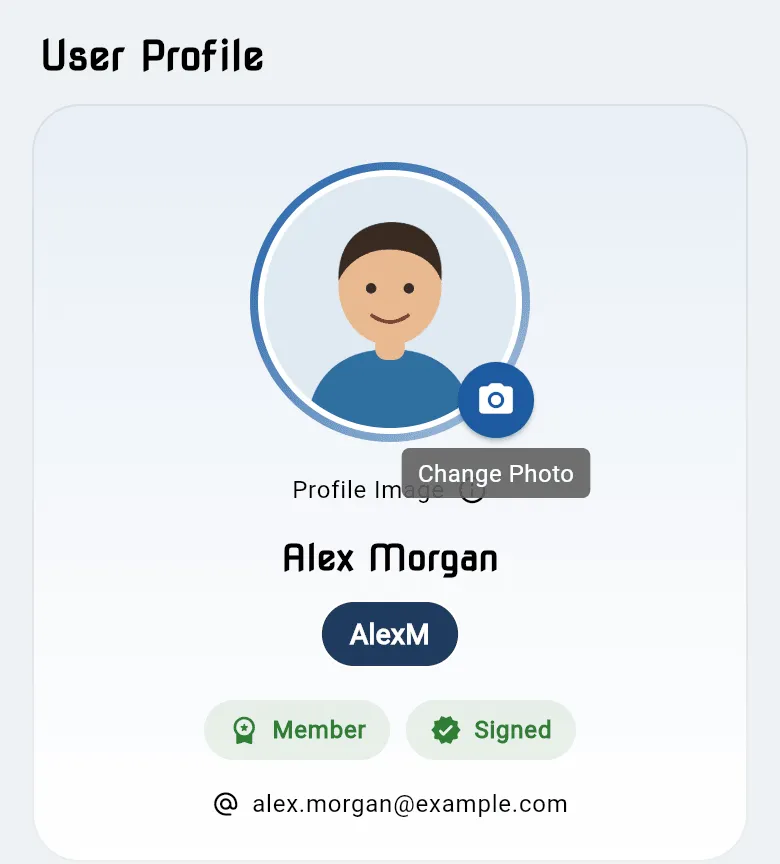
On the web, your browser asks for permission to use the camera, or lets you choose a photo, depending on your device.
If your photo is refused
Section titled “If your photo is refused”The app checks that the photo shows a face. If it can’t see one, it says:
We couldn’t see a face in that photo. Please take a selfie that clearly shows your face so staff can recognise you.
Try again in good light, facing the camera, with nothing covering your face.
Photos of children and family
Section titled “Photos of children and family”Each family member you add has their own photo. Open their entry under Additional Participants and take their photo there.