
WhatsApp shows the conversations members and enquirers have with your gym’s WhatsApp number. An AI assistant can answer common questions about classes and prices, and staff can reply themselves at any time.
Who can use it: staff with the WhatsApp roles, and admins. To reply, give staff both the WhatsApp read-only and read-and-write roles. It may not be included in every plan. If you don’t see it, ask Kakuto.
Open it from the menu: Community → WhatsApp.
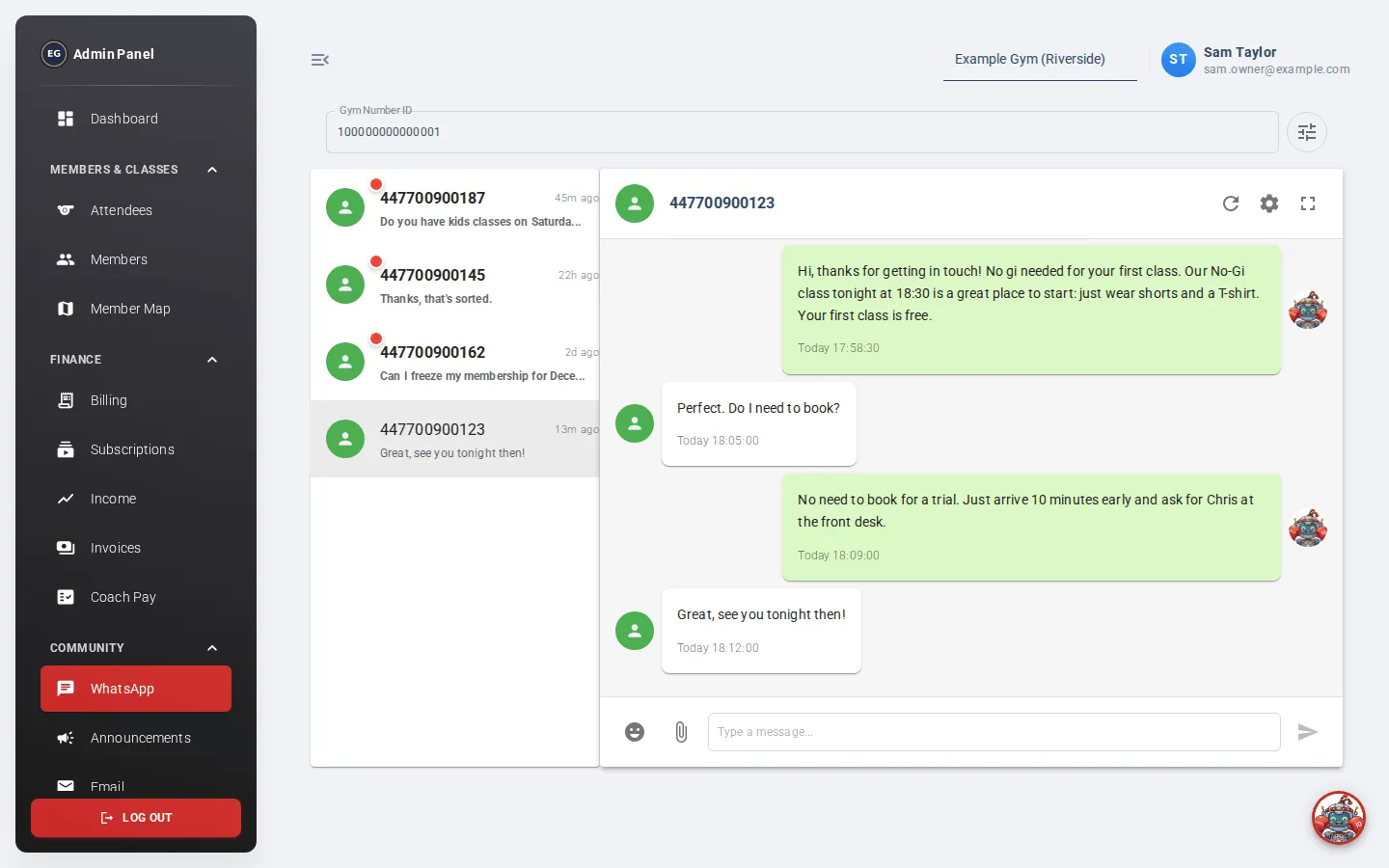
The conversation list
Section titled “The conversation list”- If your gym has more than one WhatsApp number, pick it in Gym Number ID.
- Each conversation shows the person’s phone number, their last message and how long ago it was sent.
- A red dot and bold text mean there’s a recent message you haven’t opened yet. These are listed first.
- The list updates every 30 seconds.
Reading a conversation
Section titled “Reading a conversation”Click a conversation to open it.
- The member’s messages are on the left. The gym’s messages are on the right in green, whether the AI assistant or a member of staff sent them.
- Click the refresh icon to load new messages in an open chat.
- Click the member’s picture to Call them or open the chat in WhatsApp on your own device.
- The full-screen icon makes the chat bigger.
- Type in Type a message….
- Press Enter to send (on a phone, tap the send button). Shift+Enter adds a new line.
You can also:
- Add an emoji with the smiley icon.
- Send a picture: click the paperclip and choose Upload File, or paste a picture into the page. Any text you type is sent as the caption. Only pictures can be sent.
A red error icon on a message means it didn’t send. Try again.
Quick replies
Section titled “Quick replies”Quick replies save you typing the same answer every day.
- Click the Configuration icon (sliders) at the top.
- Under Add New Quick Reply, enter a Title (for example “schedule”) and the Message.
- Click Add.
- In a chat, type / followed by part of the title. Pick the reply from the list and it fills in the box.
Auto reply and message limits
Section titled “Auto reply and message limits”Click the cog icon in an open chat to change settings for that person:
- Auto Reply: turn the AI assistant on or off for this person. Turn it off if you want to handle the conversation yourself.
- Message Throttling: the most messages the assistant will send this person (Message Limit) within a time (Duration (seconds)). The default is 10 messages in 3 hours (10800 seconds).
Click Save.