
Payments and your card
You can check your payments and fix most payment problems yourself in User Profile → Subscription Management.
See your last payment
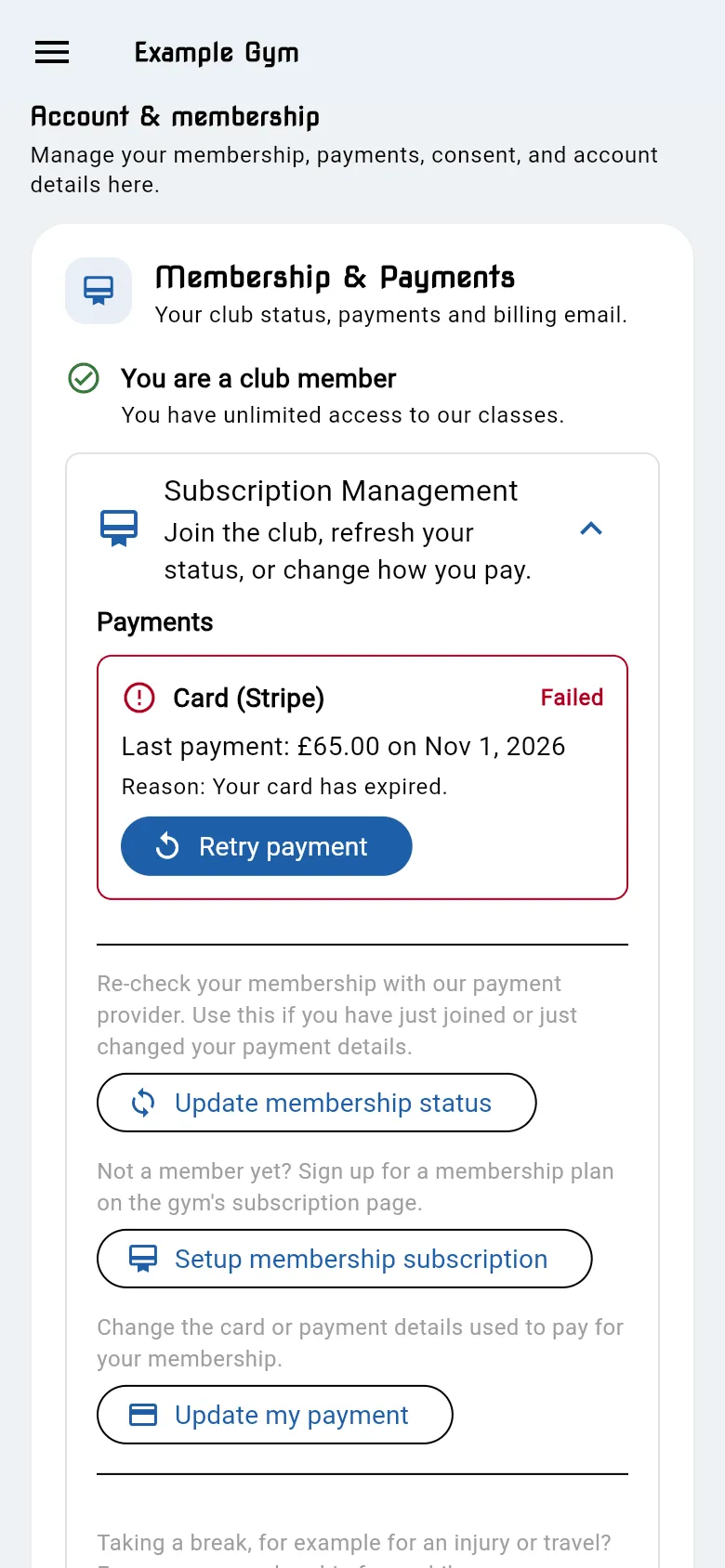
Section titled “See your last payment”Open Subscription Management. Under Payments, the app checks your accounts and shows each way you pay:
- Card (Stripe)
- Direct Debit (GoCardless)
For each one you see your Last payment (amount and date) and whether it’s Paid, Pending or Failed. A failed payment also shows the Reason.
If the app shows No payments were found…, it can’t find payments for your login email or payment email. See Paying with a different email.
Retry a failed payment
Section titled “Retry a failed payment”If your last payment failed and it can still be retried, you see Retry payment.
- If your card has expired or changed, update your card first.
- Tap Retry payment.
What happens next:
| Message | Meaning |
|---|---|
| Payment successful. Thank you! | The card payment went through. Your membership status refreshes. |
| Payment retry submitted. | A Direct Debit was sent again. It takes a few working days to collect. |
| Your payment was declined again. | Update your card, then try again. |
| This payment can no longer be retried. | Contact the gym. |
Change your card
Section titled “Change your card”- Open Subscription Management and tap Update my payment.
- A secure Stripe page opens. On a phone it opens in your browser; on the web it opens in the same tab.
- Change your card or payment details there.
- Come back to the app. If you were not a member because of a failed payment, tap Update membership status.