
Chat with agent (AI assistant)
The gym agent is an AI assistant built into the admin app. Ask it questions in plain English, such as “Who hasn’t paid this month?” or “Who trained on Tuesday evening?”. It can look up members, subscriptions, payments, classes and more.
Who can use it: staff who can open the admin app, if the agent is switched on for their account. It works as you, with your roles: it can’t see or do anything you couldn’t do yourself. It may not be included in every plan.
Open the agent
Section titled “Open the agent”- Click the round robot button at the bottom right of any page. A chat panel opens beside the page you’re on.
- Or choose Gym Admin → Chat with agent in the menu to open it as a full page, with your past conversations on the left.
The conversation carries on as you move between pages.
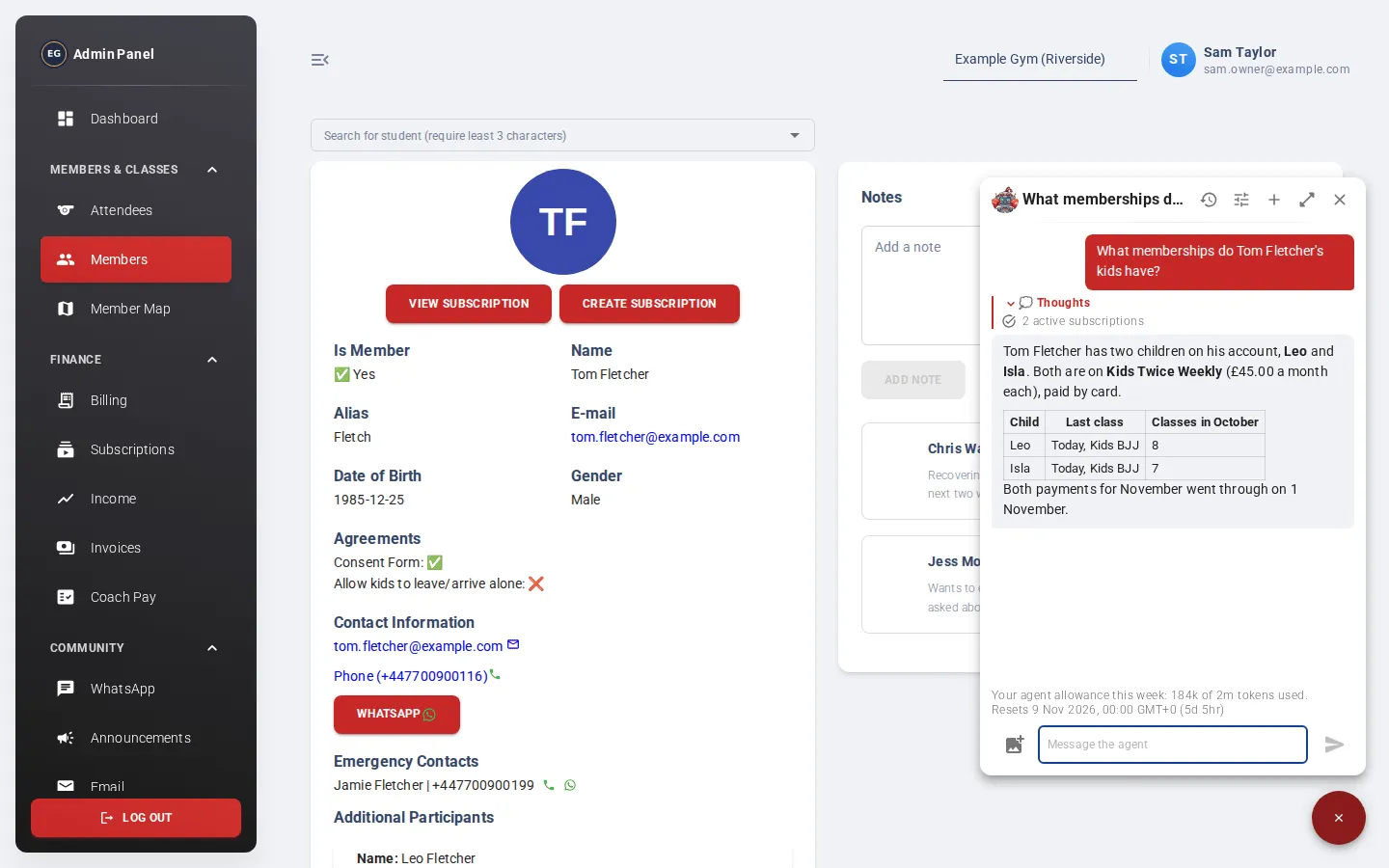
Ask a question
Section titled “Ask a question”- Type in Message the agent (up to 4,000 characters).
- Press Enter to send. Shift+Enter adds a new line.
- While it works you’ll see Working… and the step it is on. Click 💭 Thoughts to see every step: what it looked up and what it found.
- Read its answer. Answers can include tables, links and diagrams. Click Expand diagram to see a diagram full screen.
Show it a screenshot
Section titled “Show it a screenshot”If you’re stuck on a screen, show the agent what you’re looking at.
- Click the picture icon and choose an image, or
- paste a screenshot into the message box (Ctrl+V or Cmd+V), or
- drag an image onto the conversation.
You can attach up to 3 images per message. Click the ✕ on a thumbnail to remove it.
Changes need your OK
Section titled “Changes need your OK”The agent asks you to confirm before it changes anything or moves money, for example cancelling a subscription. Reply to confirm or say no.
To stop it while it is working, click the red stop button where the send button was. Anything it has already done stays done.
Conversations
Section titled “Conversations”- Click + to start a New conversation.
- Click the history icon to see your earlier conversations and open one.
- In the panel, click Open full page for more room.
Under the conversation you’ll see how much of your weekly allowance you’ve used, and when it resets.
Gym instructions
Section titled “Gym instructions”Click the sliders icon (Gym instructions for the agent) to give the agent instructions it follows in every conversation, for everyone on your staff. For example: “When looking up a member, also check their payment email.”
Type up to 4,000 characters and click Save. The agent uses them from the next message. These instructions are shared by everyone at your gym.