
Checking in
Checking in tells your gym you’re at a class. It counts towards your stats and Training Journey. Gyms usually ask everyone to check in.
There are up to three ways to check in:
- Scan the gym’s QR code with your phone.
- Check in near gym in the app, if your gym uses location check-in.
- A member of staff checks you in. This is why your profile photo matters: it helps staff recognise you.
Check in with the QR code
Section titled “Check in with the QR code”Your gym has a QR code poster, usually near the door.
- Open your phone’s camera and point it at the QR code.
- Tap the link that appears. Your gym’s app opens and shows Checking in to class.
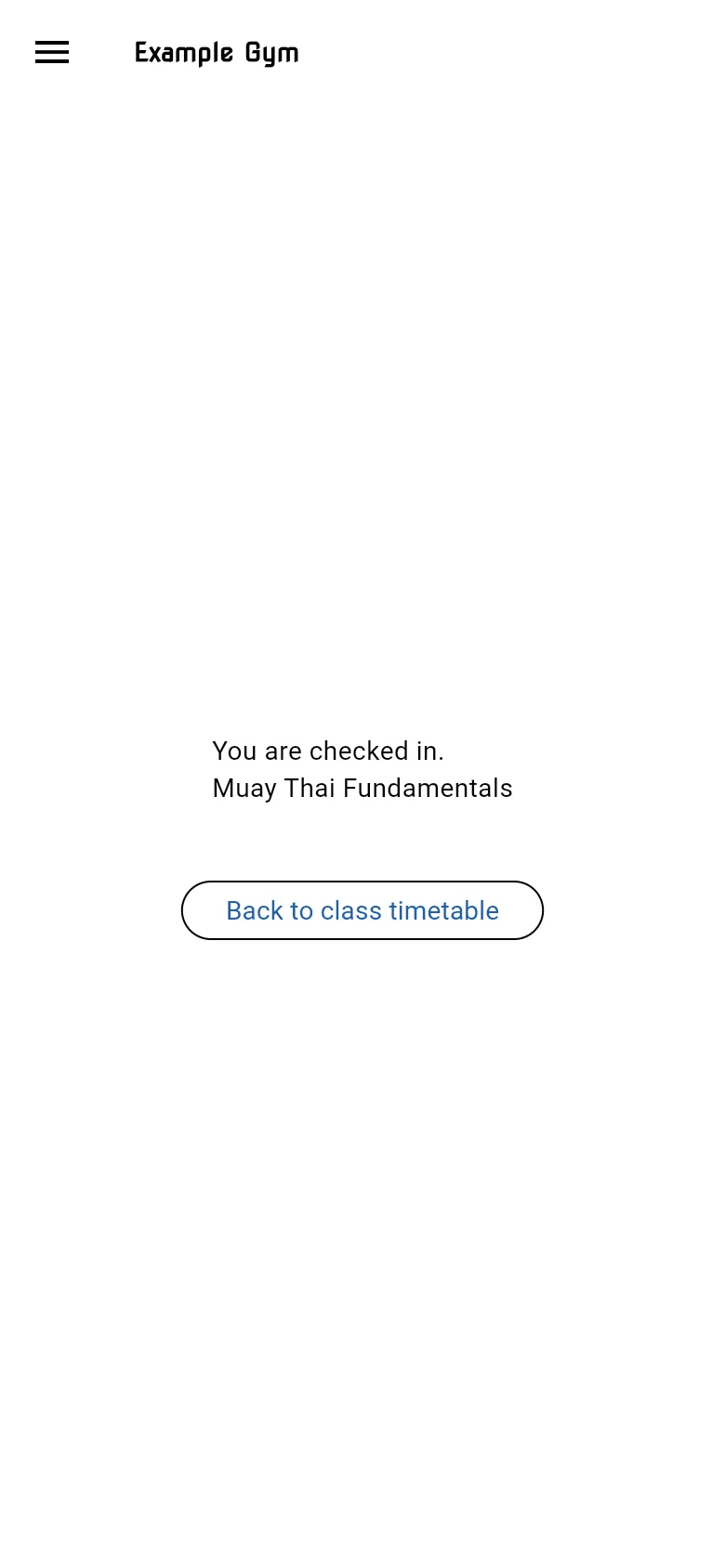
- Wait for You are checked in. and the name of the class.
Scanning the QR code opens your gym’s app in the browser. Make sure you’re logged in there. Then wait for You are checked in.
If more than one class is on at that time, the app asks you to Choose the class you are attending. Tap your class.
Tap Back to class timetable when you’re done. The class now shows CHECKED IN.
Check in near the gym
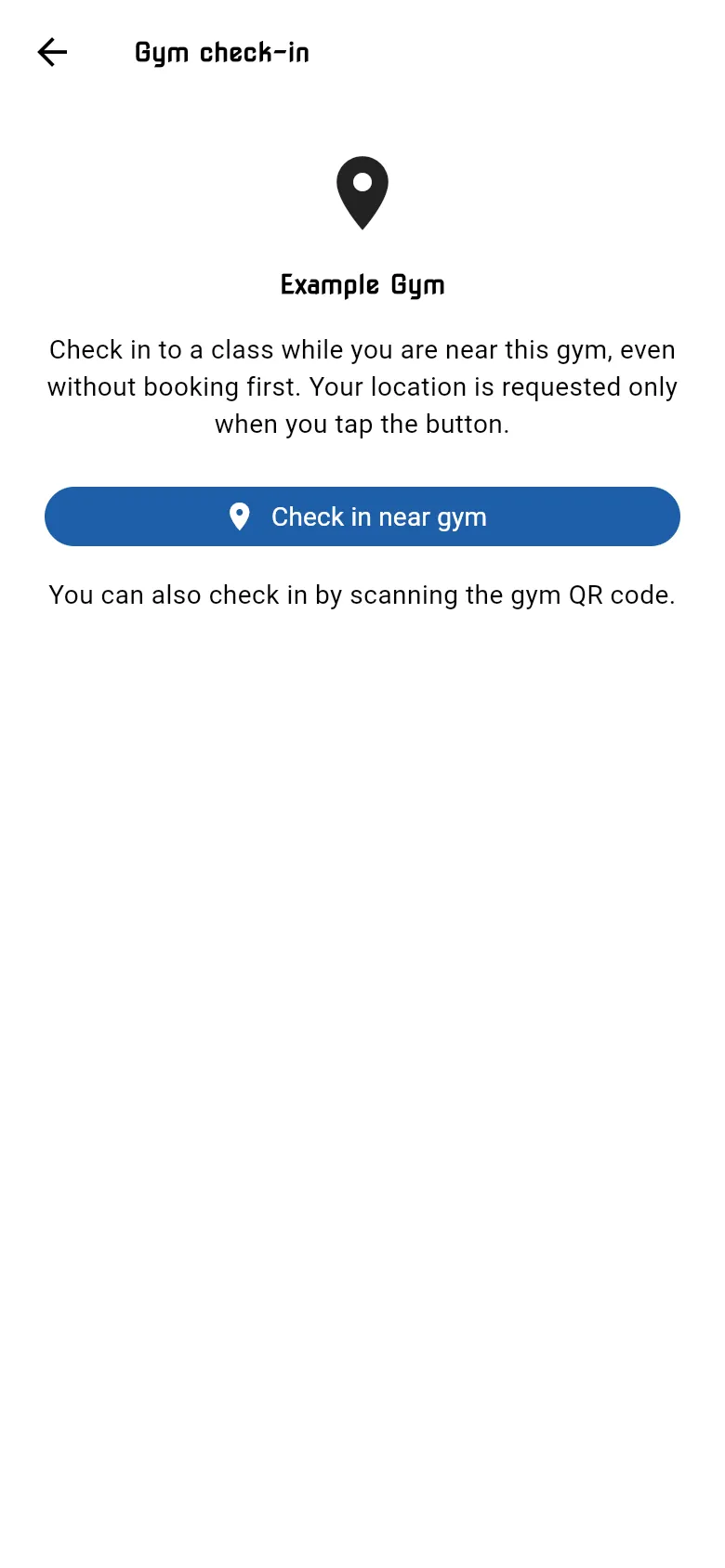
Section titled “Check in near the gym”If your gym uses this, a Check in near gym button appears at the top of the timetable. You can use it even if you didn’t book first.
- At the gym, open the Class Timetable and tap Check in near gym.
- On the Gym check-in screen, tap Check in near gym again.
- Allow location access if your phone or browser asks.
- The app finds your location and checks you in. If more than one class is on, choose yours.
If check-in doesn’t work
Section titled “If check-in doesn’t work”| Message | What to do |
|---|---|
| No class is available for check-in right now. | You can only check in around the time of a class. Check the timetable. |
| You need to be closer to this gym to check in. | Move closer, and check that the right gym is selected in Settings. |
| Your location is not accurate enough. | Turn on precise location for the app and try again somewhere with better signal. |
| Turn on location services on your device | Location is switched off on your phone. Turn it on and try again. |
| Allow location access… | You declined location access. Allow it in your phone’s or browser’s settings, then try again. |
| Finding your location took too long. | Move somewhere with better signal and try again. |
| Location check-in is not available for this gym yet. | Use the gym’s QR code instead. |
| The server did not respond in time. | Your check-in may have worked. Check the timetable for CHECKED IN before trying again. |
If location check-in is refused, the app can show Location check-in details. Show these to a member of staff so they can see why; you can tap Copy to copy them. You can always check in with the QR code instead. More help: Troubleshooting.